



Advertiser Disclosure: The Rewards Mom has partnered with CardRatings for our coverage of credit card products. The Rewards Mom and CardRatings may receive a commission from card issuers. Some or all of the card offers that appear on The Rewards Mom are from advertisers, and compensation may impact how and where card products appear on the site. The Rewards Mom does not include all card companies or all available card offers. The Rewards Mom may earn compensation when a customer clicks on a link, when an application is approved, or when an account is opened. Terms apply to American Express benefits and offers. Enrollment may be required for select benefits.
Have you ever thought: “I should be earning extra points or cash-back when I shop online… but remembering to do it is such a hassle.”
This is exactly what I thought before I started using Rakuten. Or maybe, you didn’t even know that it was possible!
Well there’s good news, you can! You can set things up so that earning with Rakuten becomes nearly automatic on both your phone and your desktop. Below, I walk you through each step so you don’t have to think of it until you want to use those points.
If you haven’t signed up for Rakuten and want some free $$ to use there, make sure you use my referral link.
Why Use Rakuten?
Rakuten is a free program that gives you cash back (or points in some cases) when you shop through their portal or use their browser extension/app. If you set it up right, it works quietly in the background: you shop as you normally would, you get the bonus.
When you combine it with your credit-card strategy (especially if your cards transfer to partners etc.), you’re effectively stacking savings without even needing to think about it.
Step 1: Sign Up + Referral Bonus
Before anything else: make sure you sign up for Rakuten through my referral link (you’ll get $50 after you spend $50 through Rakuten in your first 90 days). After sign-up, download the Rakuten app to your phone.
Step 2: Phone Setup (App + Mobile Extension)
You’ll want to do this so you don’t miss opportunities when you shop via mobile.
On your phone:
- Download the Rakuten app from the App Store or Google Play.
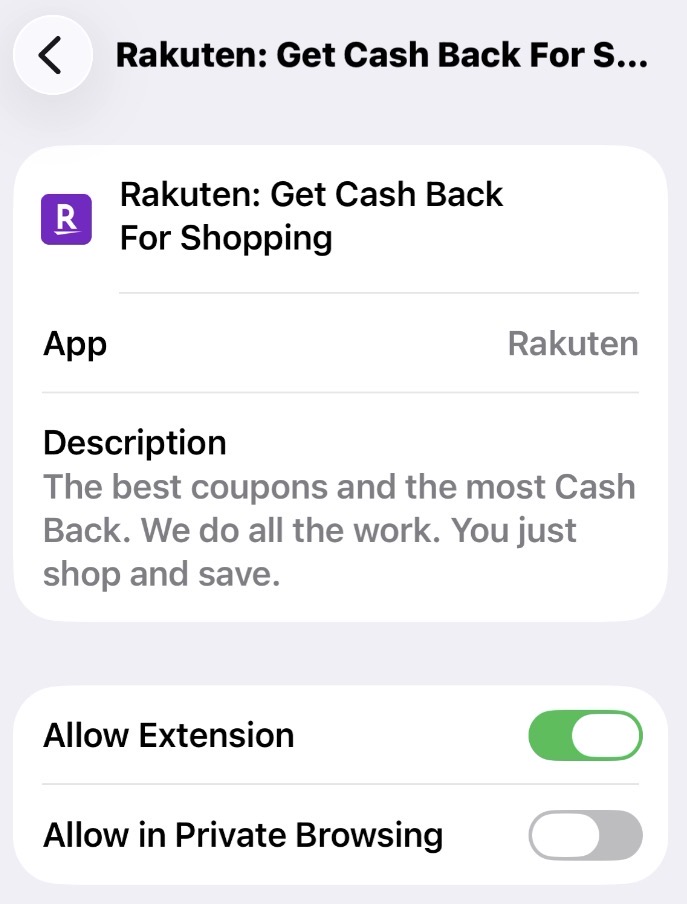
- On your iPhone, open Settings → Apps → Safari → Extensions, tap Rakuten: Get Cash Back For Shopping, and turn on Allow Extension (my screenshots are below). While you’re in Settings, turn on notifications for the Rakuten app so it can alert you to boosted rates.
- Prefer to do it from Safari? Tap the aA icon in the address bar → Manage Extensions → turn on the toggle for the Rakuten extension → tap “Always Allow” when prompted.
- Once the mobile extension is enabled, when you visit a supported store from your phone, Rakuten will pop-up or notify you that Cash Back is available. Tap Activate Cash Back, then proceed to shop.
- Here’s what it looked like for me on my iPhone step-by-step.
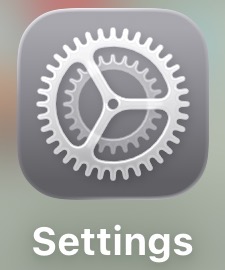
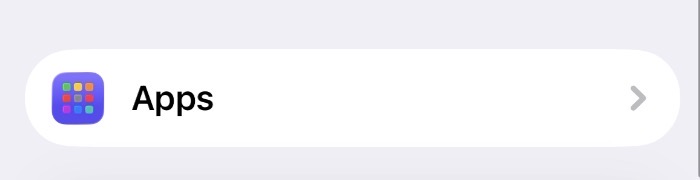
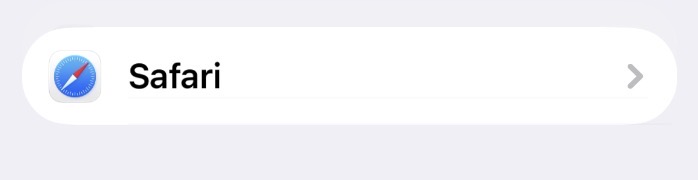
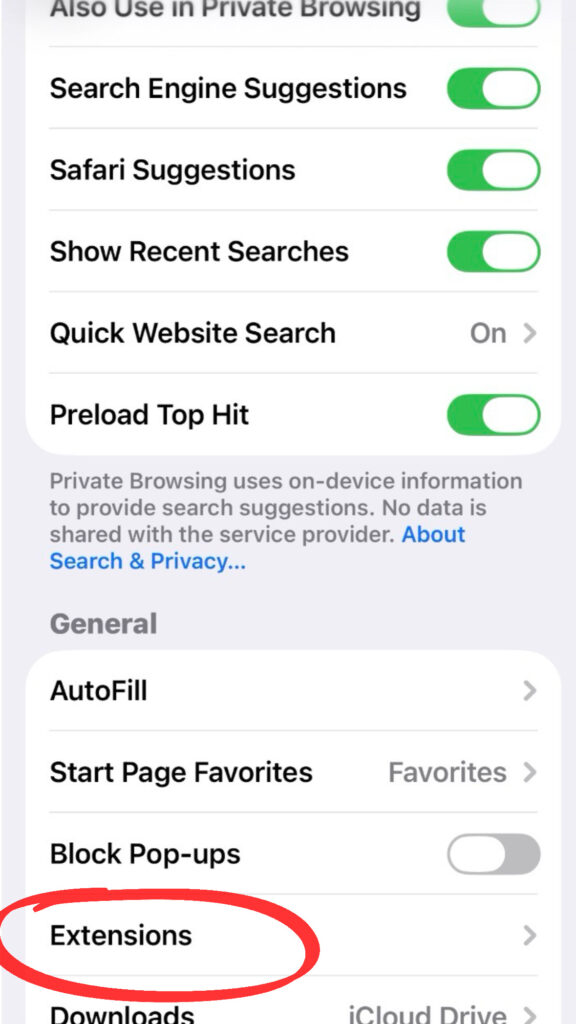

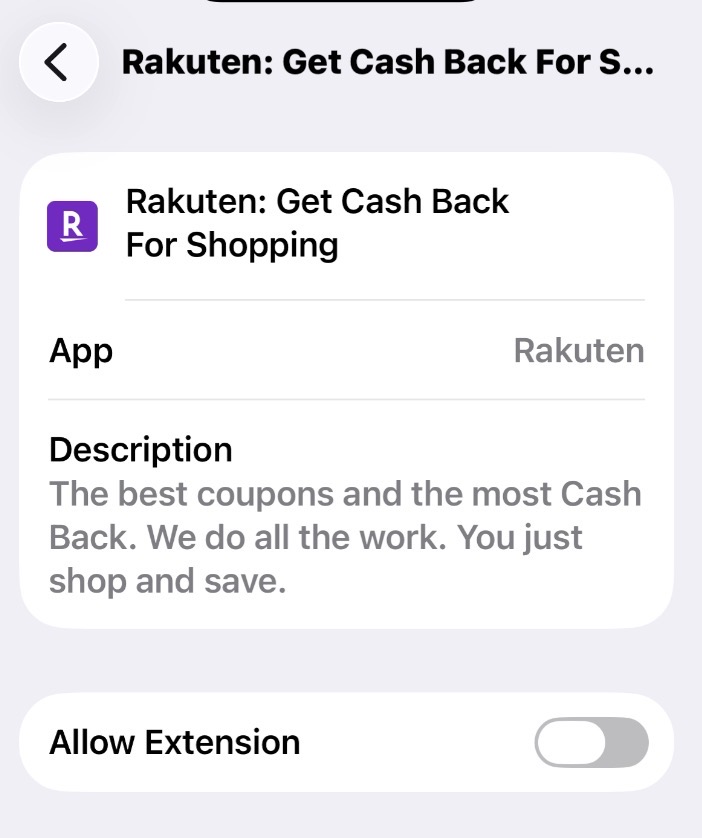
Notice how I clicked the add extension button so below it is now green.
Step 3: Desktop Setup + Browser Extension
Here’s how to set it up:
Install the Browser Extension
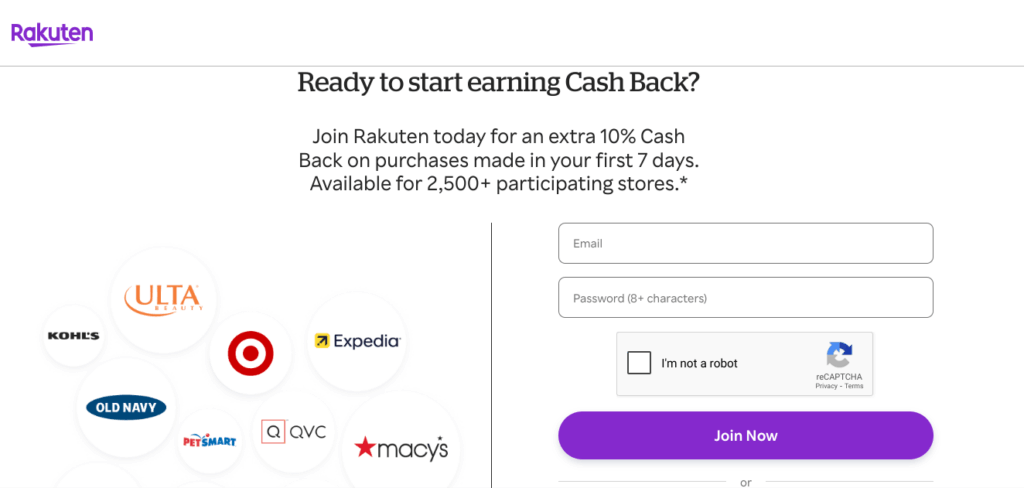
Visit the browser store (Chrome Web Store for Chrome, Safari Extensions for Safari, Microsoft Edge Add-ons for Edge). You can find more details here if you need it. Below is what it looks like for Chrome. In whatever browser you have, you will want the extension of Rakuten: Get Cash Back For Shopping.

Click Add to … (Chrome, Edge) or Get (Safari) and confirm the installation. Then make sure you put in your email and other information to join.
- Once installed:
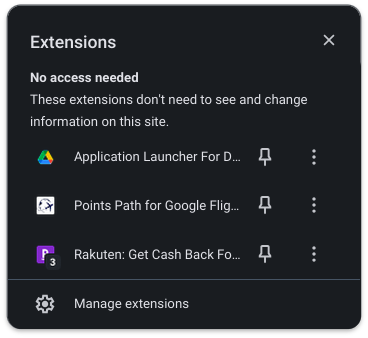
- Chrome: Click the puzzle-piece icon in the toolbar → pin the Rakuten extension so its icon is always visible.
- Safari: Go to the Safari menu → Settings → Extensions tab → check the box for Rakuten.
Use It When Shopping
Once the extension is active, head to the online store you plan to shop at (you don’t necessarily need to start at Rakuten.com first).
| Icon Color | What It Means | What to Do |
|---|---|---|
| Purple | No cash back available for this store. | Shop normally or check Rakuten.com for eligible offers. |
| Red | Cash back is available but not yet activated. | Click the Rakuten icon → select “Activate Cash Back” before checkout. |
| Blue | Cash back is active and tracking for your purchase. | Shop as normal—your earnings will post automatically. |
Troubleshooting & Autopilot Tweaks
- If you use ad-blockers or cookie blockers, these can interfere with cash-back tracking. Rakuten warns that ad‐blockers might prevent the tracking from working properly. Other coupon or shopping extensions (like Capital One Shopping) can do the same, so let only one tool activate on each order.
- To reduce friction (autopilot):
- Keep the extension pinned so it’s always visible and you’re reminded automatically.
- Visit your favorite stores through Rakuten’s portal or let the extension notify you when you land on a store site.
- Optional: the extension has a “Do not display Activation Hover” setting. Leave it off so the activation pop-up keeps reminding you on the stores you shop most.
Step 4: Make it Truly Hands-Free
Here are advanced tips to get it as close to automatic as possible:
Turn these five tweaks into your default shopping flow so you never wonder, “Did I go through Rakuten?”
Make the browser extension your default
Shop as usual—let the extension prompt you so you don’t have to remember the portal step.
Enable phone notifications
Turn on Rakuten push alerts so you catch in-store and mobile offers automatically.
Stack with your best card strategy Stack
Use a card that earns bonus points where you already shop. Your stack = card rewards + Rakuten cash back + coupons.
Check the “Offers” tab weekly
Scan for elevated rates and promos before big purchases or holiday hauls.
Make “blue icon” your shopping rule
When you open a store site, glance at the Rakuten icon: red = activate, blue = good to go.
Turn Everyday Shopping Into Rewards with Rakuten
Once you’ve set up Rakuten on your phone and desktop, it truly runs in the background, quietly earning every time you shop. Whether it’s school supplies, last-minute travel gear, or Christmas gifts, those small bonuses add up fast. And now that you can even earn Bilt points through Rakuten, it’s easier than ever to turn everyday shopping into your next family trip.
Think of this setup as your “set it and forget it” system, one that makes earning rewards automatic so you can focus on planning the fun part: where those points will take you next.
Related Articles
How to earn American Express Membership Rewards points with Rakuten
How to earn Bilt points with Rakuten
What Is Rakuten and How Does It Work?
Editorial Disclosure: Opinions, reviews, analyses & recommendations are the author’s alone, and have not been reviewed, endorsed or approved by any of these entities.


VIEW THE COMMENTS